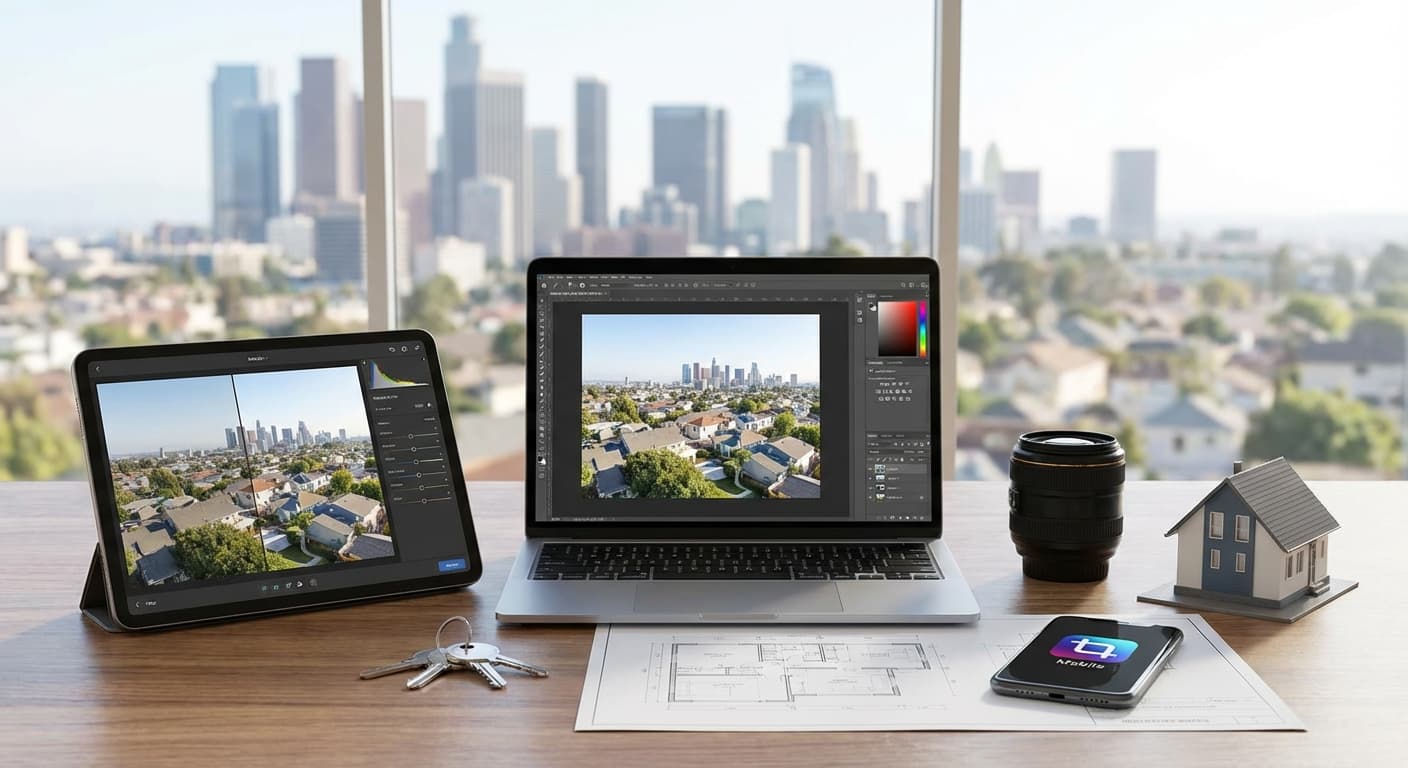
Foto yang bagus dimulai dengan good shooting technique—tapi editing adalah yang transform good photos menjadi GREAT photos. Research menunjukkan professionally edited photos meningkatkan perceived property value hingga 10-15% dan generate 40% more inquiries.
Tapi banyak agent yang overwhelmed dengan editing: software mahal, learning curve steep, atau tidak tahu mulai dari mana. Good news? Ada banyak apps & tools yang powerful, user-friendly, dan bahkan gratis! Di artikel ini, Anda akan discover best editing tools untuk every budget dan skill level.
Key Takeaways
Mobile apps Free tools Batch editing Subtle editing Essential edits Cloud storage- (Snapseed, Lightroom Mobile) sudah cukup untuk 90% editing needs
- bisa produce professional results—expensive software not mandatory
- dengan presets save 70% editing time
- builds trust—over-edited photos turn buyers off
- : Straighten, brightness, contrast, white balance (master these first!)
- crucial untuk organize & backup edited photos
- Straighten & crop
- Adjust brightness/exposure
- Fix white balance (color temperature)
- Increase contrast
- Sharpen image
- HDR merging
- Perspective correction
- Object removal
- Sky replacement
- Virtual staging
- ❌ Crooked horizons → ✅ Straight lines
- ❌ Too dark → ✅ Bright & inviting
- ❌ Yellow color cast → ✅ Natural colors
- ❌ Soft/blurry → ✅ Sharp & clear
- Make rooms look brighter
- Colors more vibrant (but natural!)
- Details more visible
- Professional appearance
- ✅ Enhance what's there
- ✅ Correct lighting & color
- ❌ Don't deceive (fake features)
- ❌ Don't drastically alter reality
- ✅ Completely free (no watermarks!)
- ✅ Professional-grade tools
- ✅ User-friendly interface
- ✅ Selective editing (edit specific areas)
- ✅ Healing tool (remove objects)
- ✅ Perspective correction
- : Brightness, contrast, saturation
- : Sharpening & structure
- : Fix color casts
- : Straighten vertical lines
- : Remove small objects
- : Edit specific areas only
- Quick edits on-the-go
- Straightening & perspective correction
- Brightening dark rooms
- Removing small distractions
- Open photo in Snapseed
- : Adjust brightness (+10-20), contrast (+5-10)
- : Fix color temperature
- : Straighten vertical lines
- : Sharpen (+10-15)
- Export & save!
- ✅ Industry-standard tools
- ✅ Powerful editing capabilities
- ✅ Presets (one-tap editing)
- ✅ Sync with desktop Lightroom
- ✅ RAW file support
- ✅ Batch editing
- Basic adjustments (exposure, contrast, etc)
- Cropping & straightening
- Some presets
- All presets
- Healing brush
- Selective editing (masks)
- Cloud storage (100GB)
- Desktop sync
- : Exposure, highlights, shadows
- : Temperature, tint, vibrance
- : Clarity, dehaze, vignette
- : Sharpening, noise reduction
- : Lens corrections, perspective
- : One-tap editing styles
- Professional-level editing
- Creating custom presets
- Batch editing multiple photos
- RAW file editing
- Import photo
- : Exposure (+0.3-0.5), Shadows (+20-30)
- : Temperature (adjust untuk natural white)
- : Clarity (+10-15), Dehaze (+5-10)
- : Sharpening (+20-30)
- : Enable lens corrections
- Save as preset untuk future use!
- ✅ Beautiful presets (film-inspired)
- ✅ Clean, minimalist interface
- ✅ Social community
- ✅ Good for lifestyle shots
- ❌ Limited free presets
- ❌ Less powerful than Lightroom
- ❌ More for aesthetics than technical editing
- Lifestyle property shots
- Instagram-worthy edits
- Luxury properties (aesthetic focus)
- ✅ Excellent object removal
- ✅ Easy to use
- ✅ One-time purchase (not subscription)
- Removing power lines
- Removing trash cans, cars
- Cleaning up exterior shots
- Removing small distractions
- Open photo
- Brush over object to remove
- App automatically fills in background
- Export!
- ✅ Adobe brand (reliable)
- ✅ Free & no watermark
- ✅ Simple interface
- ✅ Good for beginners
- ❌ Less powerful than Lightroom
- ❌ Limited advanced features
- Quick touch-ups
- Beginners who find Lightroom intimidating
- On-the-go edits
- ✅ Industry standard
- ✅ Powerful editing tools
- ✅ Excellent batch editing
- ✅ Preset creation & management
- ✅ Catalog organization
- ✅ Non-destructive editing
- : All editing tools
- : Create & apply custom presets
- : Edit multiple photos at once
- : Consistent output settings
- : Organize thousands of photos
- Agents editing 50+ photos per listing
- Creating consistent look across all listings
- Professional-level results
- Long-term organization
- ✅ Most powerful editing software
- ✅ Pixel-level control
- ✅ Advanced retouching
- ✅ Compositing & manipulation
- Virtual staging
- Sky replacement
- Complex object removal
- Perspective correction (advanced)
- HDR merging
- ✅ One-time purchase option (no subscription!)
- ✅ AI-powered tools (easy to use)
- ✅ Sky replacement (one-click)
- ✅ Object removal (AI-powered)
- ✅ User-friendly interface
- : Realistic sky changes
- : Enhance details
- : Remove objects easily
- : (not needed untuk property)
- Agents who hate subscriptions
- AI-assisted editing (easier than manual)
- Sky replacement needs
- ✅ Superior color grading
- ✅ Excellent tethering (for studio shoots)
- ✅ Powerful editing tools
- ❌ Expensive
- ❌ Steep learning curve
- ❌ Overkill untuk most agents
- ✅ Completely free
- ✅ Open-source
- ✅ Photoshop alternative
- ❌ Outdated interface
- ❌ Steep learning curve
- ❌ Less intuitive than paid options
- Agents on tight budget
- Basic to intermediate editing
- One-time complex edits
- Import all photos from shoot
- Create collection:
- Rate photos (5-star system)
- Flag best shots
- Rename:
- Example:
- ✅ Sharp, well-composed shots
- ✅ Good lighting
- ✅ Multiple angles per room
- ❌ Blurry, out-of-focus
- ❌ Bad composition
- ❌ Duplicate shots (keep best only)
- Use grid untuk align horizons
- Straighten vertical lines
- Crop untuk better composition
- Brighten if too dark (+0.3 to +0.7)
- Darken if too bright (rare)
- Goal: Bright & inviting, but natural
- Recover blown-out windows (Highlights: -20 to -50)
- Lift dark shadows (Shadows: +20 to +40)
- Balance overall exposure
- Fix color casts (yellow, blue, green)
- Aim untuk neutral, natural white
- Warm tones OK (inviting), but not too much
- Slight increase (+5 to +15)
- Adds definition & pop
- Don't overdo (harsh)
- Clarity: +10 to +20 (adds "punch")
- Sharpening: +20 to +40
- Makes details crisp
- Increase slightly (+10 to +20)
- Makes colors more lively
- More subtle than Saturation
- Use sparingly (0 to +10)
- Easy to overdo (fake-looking)
- Adjust specific colors
- Example: Make grass greener, sky bluer
- Subtle is key!
- Enable profile corrections
- Fixes distortion & vignetting
- If photo is grainy (high ISO)
- Luminance: +20 to +40
- Slight darkening of edges (optional)
- Draws eye to center
- Amount: -5 to -15 (subtle!)
- : JPEG
- : 80-90% (balance size vs quality)
- : 1920px long edge (for web)
- : sRGB (for web)
- : For screen, standard
- Target: 200-500 KB per photo
- Max: 1 MB (for fast loading)
- Saved editing settings
- One-click application
- Consistent look across photos
- ✅ Save time (70% faster editing!)
- ✅ Consistent brand look
- ✅ Professional appearance
- ✅ Easy to replicate success
- Edit one photo perfectly
- Click "+" next to Presets
- Name preset: "Property - Bright Interior"
- Check settings to include
- Save!
- ✅ Exposure adjustments
- ✅ White balance
- ✅ Contrast, clarity
- ✅ Sharpening
- ❌ Crop (varies per photo)
- ❌ Spot removal (specific to photo)
- Import photos
- Apply preset to all
- Fine-tune individual photos (if needed)
- Export!
- Without preset: 5 min per photo
- With preset: 1 min per photo
- "Property - Bright Interior"
- "Property - Exterior Golden Hour"
- "Property - Dark Room Boost"
- "Property - Luxury (Moody)"
- Preset is starting point
- Fine-tune for each photo
- Not one-size-fits-all
- : Property photography presets (Rp 50-200k)
- : Professional presets
- : Lightroom presets
- Test before buying
- Many are over-edited (too much!)
- Adjust to your taste
- Merge multiple exposures
- One photo: exposed for room
- One photo: exposed for windows
- Merge: Balanced exposure
- Bright windows + dark room
- High contrast scenes
- Can't balance in single shot
- Tripod (essential!)
- Shoot 3 exposures: -2, 0, +2 EV
- Don't move camera between shots
- Select 3 photos
- Right-click → Photo Merge → HDR
- Adjust merged photo
- Export!
- Don't overdo (fake HDR look)
- Subtle is better
- Natural-looking is goal
- Fix converging vertical lines
- Make walls look straight
- Professional appearance
- Tilted camera (looking up/down)
- Wide-angle distortion
- Crooked walls
- Transform panel
- Click "Auto" (often works!)
- Or: Manual adjustments (Vertical, Horizontal sliders)
- Crop to remove empty edges
- Filter → Lens Correction
- Transform tab
- Adjust vertical/horizontal perspective
- Crop
- Power lines
- Trash cans
- Cars (if distracting)
- Small clutter
- Structural elements
- Major features
- Anything deceptive
- Tools → Healing
- Brush over object
- App fills in background
- Done!
- Clone Stamp Tool atau Healing Brush
- Sample nearby area (Alt+Click)
- Paint over object
- Blend seamlessly
- Open photo
- Brush over object
- Process
- Export!
- Blown-out white sky
- Boring gray sky
- Dramatic effect needed
- ✅ OK untuk fix blown-out sky
- ✅ OK untuk enhance boring sky
- ❌ Not OK untuk deceive (fake weather)
- : Some agents disclose, some don't
- Sky AI tool
- Choose replacement sky
- Adjust blend
- Done! (easiest method)
- Select sky (Select → Sky)
- Delete atau mask
- Add new sky layer
- Blend & adjust
- Edit multiple photos at once
- Apply same settings to all
- Massive time saver
- Photos from same room (similar lighting)
- Entire property shoot (consistent look)
- Multiple properties (brand consistency)
- Edit one photo perfectly
- Select all similar photos
- Click "Sync"
- Choose settings to sync
- Apply!
- Edit one photo
- Copy settings (Cmd+C / Ctrl+C)
- Select other photos
- Paste settings (Cmd+V / Ctrl+V)
- Apply preset to all photos
- Fine-tune individual photos
- Export!
- Individual editing: 5 min × 30 photos = 2.5 hours
- Batch editing: 5 min + (1 min × 30) = 35 minutes
- File → Export
- Set all export settings (format, size, quality)
- Click "Add" (bottom left)
- Name: "Property - Web Upload"
- Save!
- Select photos
- Click export preset name
- Done! (no need to set settings again)
Understanding Photo Editing Basics
What is Photo Editing?
Basic Editing (Essential):
Advanced Editing (Optional):
Why Edit Property Photos?
Correct Issues:
Enhance Appeal:
Maintain Honesty:
💡 Golden Rule: Edit untuk make property look its best, tapi still realistic & honest!
Best Mobile Apps (Smartphone Editing)
1. Snapseed (FREE) ⭐⭐⭐⭐⭐
Platform: iOS & Android
Price: FREE
Best For: Beginners to intermediate
Why We Love It:
Key Features:
Tune Image Details White Balance Perspective Healing SelectiveBest For Property:
Tutorial:
Tools → Tune Image Tools → White Balance Tools → Perspective Tools → DetailsRating: ⭐⭐⭐⭐⭐ (Best free option!)
2. Adobe Lightroom Mobile (FREE & Paid)
Platform: iOS & Android
Price: FREE (basic) | Rp 140k/month (Premium)
Best For: Intermediate to advanced
Why We Love It:
Free Version:
Enough untuk most agents!Premium Version (Rp 140k/month):
Key Features:
Light Color Effects Detail Optics PresetsBest For Property:
Tutorial:
Light Color Effects Detail OpticsRating: ⭐⭐⭐⭐⭐ (Best overall mobile app)
3. VSCO (FREE & Paid)
Platform: iOS & Android
Price: FREE (limited) | Rp 50k/month (Membership)
Best For: Aesthetic, lifestyle-focused editing
Why We Love It:
Cons:
Best For Property:
Rating: ⭐⭐⭐ (Good for aesthetics, not essential)
4. TouchRetouch (Paid, Rp 30k)
Platform: iOS & Android
Price: Rp 30k (one-time)
Best For: Object removal
Why We Love It:
Best For Property:
How It Works:
Rating: ⭐⭐⭐⭐ (Specialized tool, very useful)
5. Photoshop Express (FREE)
Platform: iOS & Android
Price: FREE
Best For: Quick, simple edits
Why We Love It:
Cons:
Best For Property:
Rating: ⭐⭐⭐ (Good for beginners)
💡 Recommendation: Start dengan Snapseed (free, powerful) → upgrade to Lightroom Mobile (when ready for presets & batch editing)
Best Desktop Software
1. Adobe Lightroom Classic (Subscription)
Platform: Windows & Mac
Price: Rp 140k/month (Photography Plan: Lightroom + Photoshop)
Best For: Professional editing & batch processing
Why We Love It:
Key Features:
Develop Module Presets Batch Editing Export Presets CatalogBest For Property:
Learning Curve: Moderate (worth the investment!)
Rating: ⭐⭐⭐⭐⭐ (Best for serious agents)
2. Adobe Photoshop (Subscription)
Platform: Windows & Mac
Price: Rp 140k/month (included dengan Photography Plan)
Best For: Advanced editing & manipulation
Why We Love It:
When You Need It:
Learning Curve: Steep (but powerful!)
Rating: ⭐⭐⭐⭐ (Powerful, but overkill untuk most agents)
3. Luminar Neo (One-Time Purchase)
Platform: Windows & Mac
Price: Rp 1.5 juta (one-time) atau Rp 150k/month
Best For: AI-powered editing without subscription
Why We Love It:
Key Features:
AI Sky Replacement AI Structure Erase Tool Portrait AIBest For Property:
Rating: ⭐⭐⭐⭐ (Great Lightroom alternative)
4. Capture One (Subscription atau Purchase)
Platform: Windows & Mac
Price: Rp 200k/month atau Rp 4 juta (one-time)
Best For: Professional photographers
Why We Love It:
Cons:
Rating: ⭐⭐⭐ (Professional-grade, but expensive)
5. GIMP (FREE)
Platform: Windows, Mac, Linux
Price: FREE
Best For: Budget-conscious agents
Why We Love It:
Cons:
Best For Property:
Rating: ⭐⭐⭐ (Free is good, but not user-friendly)
💡 Recommendation: Lightroom Classic (Rp 140k/month) is best investment untuk serious agents. Luminar Neo (Rp 1.5 juta one-time) jika you hate subscriptions.
Essential Editing Workflow
Step 1: Import & Organize
Lightroom:
[Address] - [Date]File Naming:
[Address]_[Room]_[Number].jpg
JlSudirman123_LivingRoom_01.jpgStep 2: Cull (Select Best Photos)
What to Keep:
What to Delete:
Goal: 20-40 photos per property (quality over quantity!)
Step 3: Basic Adjustments
For Every Photo:
1. Straighten & Crop
2. Exposure
3. Highlights & Shadows
4. White Balance
5. Contrast
6. Clarity & Sharpness
Step 4: Color Adjustments (Optional)
Vibrance:
Saturation:
HSL Adjustments:
Step 5: Final Touches
Lens Corrections:
Noise Reduction:
Vignette:
Step 6: Export
Settings:
Format Quality Resolution Color Space SharpeningFile Size:
💡 Baca Juga: 10 Tips Foto Interior Properti yang Menarik
Creating & Using Presets
What Are Presets?
Definition:
Benefits:
Creating Your Own Preset
Lightroom:
What to Include:
Applying Presets
Workflow:
Time Saved:
For 30 photos: 2 hours saved!Preset Recommendations
Create Multiple Presets:
Adjust Per Property:
Where to Buy Presets
If You Don't Want to Create:
Etsy Creative Market FilterGradeWarning:
Advanced Techniques
HDR (High Dynamic Range)
What It Is:
When to Use:
How to Do It:
Shooting:
Editing (Lightroom):
Warning:
Perspective Correction
What It Is:
When to Use:
How to Do It:
Lightroom:
Photoshop:
Object Removal
What to Remove:
What NOT to Remove:
How to Do It:
Snapseed (Mobile):
Photoshop (Desktop):
TouchRetouch (Mobile):
Sky Replacement
When to Use:
Ethical Consideration:
DisclosureHow to Do It:
Luminar Neo:
Photoshop:
Batch Editing for Efficiency
What Is Batch Editing?
Definition:
When to Use:
Lightroom Batch Editing
Method 1: Sync Settings
Method 2: Copy/Paste Settings
Method 3: Presets
Time Saved:
Saved: 2 hours!Export Presets
Create Export Preset:
Next Time:
Organization & Backup
File Organization
Folder Structure:
Properties/
 └── 2025/
 ├── Jan/
 │ ├── Jl-Sudirman-123/
 │ │ ├── RAW/
 │ │ ├── Edited/
 │ │ └── Finals/
 │ └── Jl-Gatot-456/
 └── Feb/
Naming Convention:
[Address]_[Room]_[Number].jpg- Consistent & searchable
- Hard drives fail
- Phones get lost
- Disasters happen
- 15 GB free
- Rp 27k/month (100 GB)
- Rp 43k/month (200 GB)
- 2 GB free
- Rp 170k/month (2 TB)
- 5 GB free
- Rp 15k/month (50 GB)
- Rp 45k/month (200 GB)
- Rp 500k-1 juta (1-2 TB)
- One-time cost
- Physical backup
- copies of data
- different media types
- off-site backup
- Original on computer
- External hard drive
- Cloud storage
- ✅ Download Snapseed (free, mobile)
- ✅ Practice basic edits (straighten, brightness, contrast)
- ✅ Edit 10 photos untuk practice
- ✅ Compare before-after
- ✅ Try Lightroom Mobile (free version)
- ✅ Create your first preset
- ✅ Develop consistent editing style
- ✅ Set up cloud backup
- ✅ Invest in Lightroom Classic (jika editing 50+ photos/month)
- ✅ Master batch editing workflow
- ✅ Build preset library
- ✅ Continuously improve skills
- : Master basics before advanced techniques
- : Natural-looking photos build trust
- : Develop your signature style
- : Presets & batch editing save hours
- : Your photos are your business
- : Your 100th edit will be way better than your 1st
Cloud Backup
Why Backup:
Your photos are your business!Options:
Google Drive:
Dropbox:
iCloud:
External Hard Drive:
3-2-1 Rule:
3 2 1Example:
Common Editing Mistakes
Mistake #1: Over-Editing
Problem: Fake-looking, neon colors, too bright
Solution: Subtle is better, aim untuk natural
Mistake #2: Inconsistent Editing
Problem: Each photo looks different
Solution: Use presets, batch edit untuk consistency
Mistake #3: Not Straightening
Problem: Crooked walls, tilted horizons
Solution: Always straighten first!
Mistake #4: Ignoring White Balance
Problem: Yellow, blue, atau green color casts
Solution: Fix white balance untuk natural colors
Mistake #5: Over-Sharpening
Problem: Halos, artifacts, unnatural look
Solution: Sharpen subtly (+20-40 max)
Mistake #6: Deceptive Editing
Problem: Property looks different in person
Solution: Enhance, don't deceive
Mistake #7: Not Backing Up
Problem: Lose all photos when device fails
Solution: Cloud backup + external drive
Kesimpulan
Photo editing adalah essential skill untuk modern property agents. Dengan right tools (even free ones!) dan proper workflow, Anda bisa transform good photos menjadi professional-quality images yang sell properties faster dan untuk higher prices.
Action Plan:
This Week:
This Month:
Long-Term:
Remember:
Start simple Subtle is better Consistency matters Efficiency is key Backup everything Practice makes perfectStart editing today, dan watch your property photos transform! 📸✨
Baca Juga:
10 Tips Foto Interior Properti yang Menarik Foto Eksterior Properti: Angle dan Waktu Terbaik Staging Virtual: Cara Edit Foto Properti Kosong